Skip to content
All guides
Workflow7 min

Give the character a voice

Two tools that ship with every character: a TTS voice that stays consistent across clips, and a lip-sync model that puts the audio on a still.

Stills and video give your character a face and motion. Voice and lip-sync give them sound. The two flows are separate but chain together: generate audio in the character’s voice, then sync it to a still you already love. The result is a short talking-head clip you can post directly.

Step 01

Pick a default voice when you build the character

On the new-character form, the Default voice field accepts a voice preset name. Leave it as ariaif you don’t care; pick a different preset if your character should sound deeper, younger, lighter, or have a specific accent.

The default voice anchors every TTS render for that character. Override it per generation if you need a one-off. Most users never do.

Step 02

Switch Generate to Voice mode

On /generate, top-right tab from Image to Voice. The form changes to ask for the character and a script (up to 5,000 characters). No prompt vocabulary needed for voice. Just write what the character should say.

Step 03

Write the script in the character's voice

The TTS model reads the script literally. It doesn’t add personality on top. That’s your job in the writing. Short sentences. Natural punctuation. Treat ellipses as breath beats.

Mia’s vanity narration script: “Today I’m doing a soft glam look, perfect for a daytime brunch. Start with a hydrating primer. Don’t skip this step.” Reads as her, not as a generic announcer.

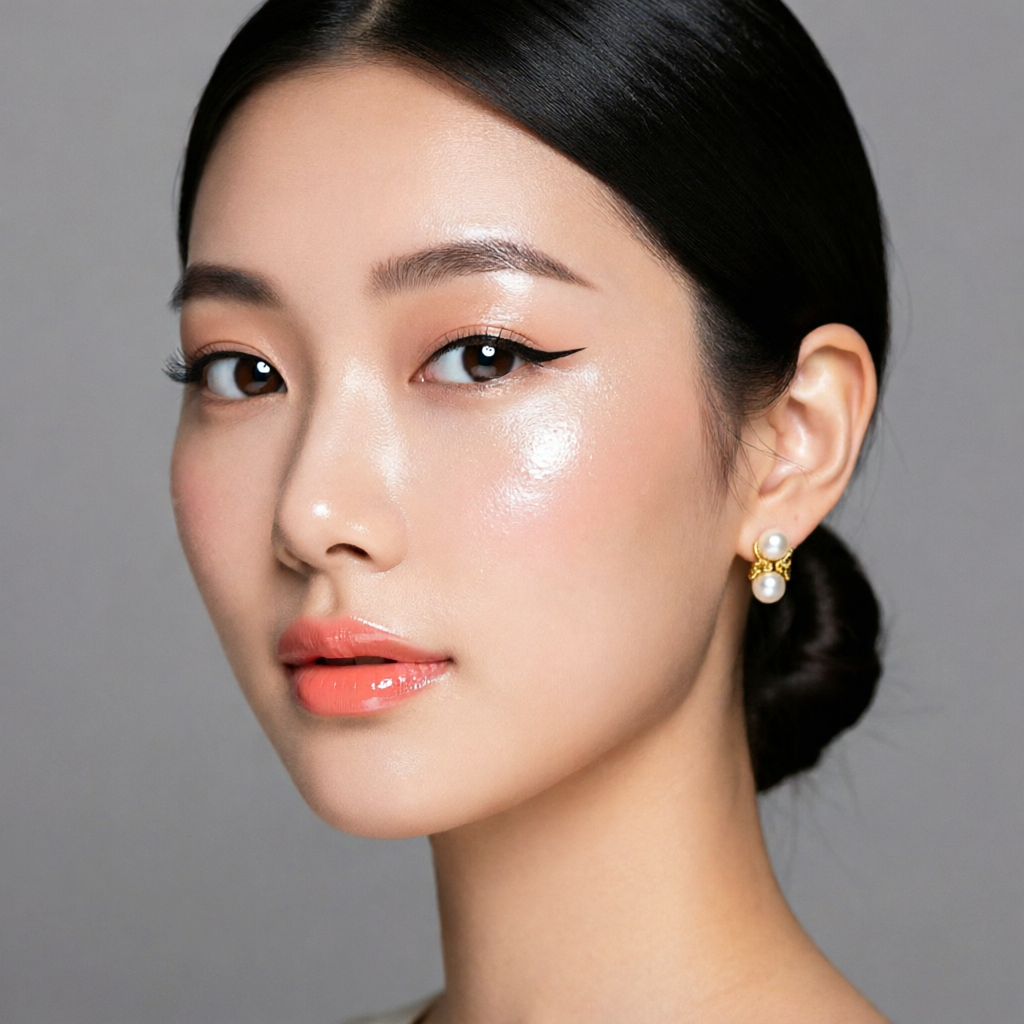
Beauty studio close-up
qwen-image-2.0-pro1:1Beauty studio close-up

Prompt

the same woman, extreme close-up beauty shot, soft pink-coral lip gloss, glass skin, dewy cheek highlight, ring light reflection in eyes, editorial Vogue Beauty quality, 100mm macro

Step 04

Submit, generate, save the audio file

The audio drops into your gallery as an MP3-style asset attached to the character. Re-render to tweak phrasing. TTS cost is low (0.1 cr per gen) so iterating is cheap.

Step 05

Switch to Lip-sync mode and pick a still + an audio clip

Lip-sync mode pairs an existing still from your gallery with an existing audio clip from your gallery. The model animates the mouth + minor head motion to match the audio while preserving the rest of the frame.

If your character has no images yet, the empty state tells you to switch to Image first. Same for missing audio.

Step 06

Pick the right still

Best lip-sync results come from stills with: face square to camera, mouth visible, mouth closed or slightly open. Side profiles, distant shots, and obscured mouths give weaker results.

Treat lip-sync as a finishing tool, not a core composer. The face should already be locked from the still; lip-sync just makes it speak.

Sourdough, kitchen
qwen-image-2.0-pro4:5Sourdough, kitchen

Prompt

the same man pulling a hot sourdough loaf from a home oven with a wooden peel, golden brown crust, kitchen towel slung over shoulder, photoreal warm-light food editorial

Step 07

Submit + post

Generation runs in 60-90s and lands in the gallery as a video. Drop into Reels, TikTok, YouTube Shorts directly. The audio is already embedded; you don’t need to re-mux.

Image, video, voice, lip-sync. That’s the full character studio loop. The last guide is a quick reference for picking the right model when you have a specific shot in mind.

Now go build.

The whole pipeline is in your dashboard. Start with a character, ship every format from there.