Use case · remove text from image

remove text from image with socialAF.

Remove text from image files without starting your creative work over. socialAF helps creators, influencers, studios, and agencies clean up screenshots, campaign concepts, AI character images, product-style visuals, thumbnails, story assets, and social posts so the final image looks intentional, reusable, and ready to publish. Instead of settling for a great image ruined by a caption, date stamp, placeholder label, typo, or unwanted overlay, you can refresh the visual and keep moving. Modern AI image cleanup commonly relies on inpainting, a process that removes selected areas and reconstructs a plausible background from the surrounding visual context. ([imagetolayers.com](https://www.imagetolayers.com/solutions/remove-text?utm_source=openai)) With socialAF, that cleanup becomes part of a bigger creator workflow: upload or generate an image, guide the edit with image-to-image prompting, save polished results inside per-character galleries, and reuse the same character across image generation, video generation, talking avatars, text-to-speech, and voice-led content. The outcome is simple: cleaner visuals, faster production, fewer discarded concepts, and more consistent AI characters across your brand universe.

Get started today·Results in seconds·Loved by creators
Our library·13 characters·12 models

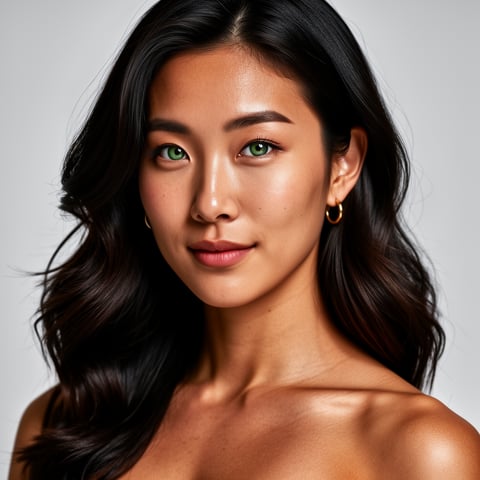
Mia, Beauty + soft glam
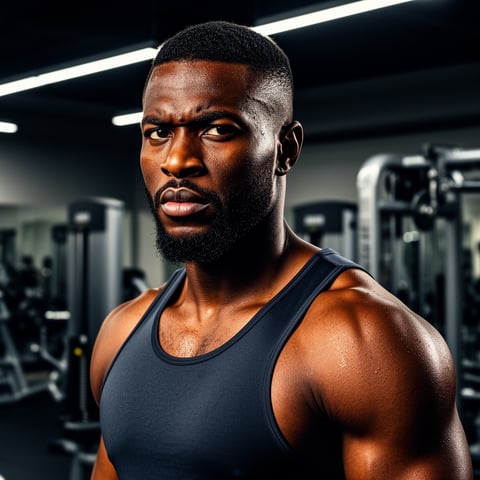
Nova, Fitness + wellness
Jordan, Strength coach
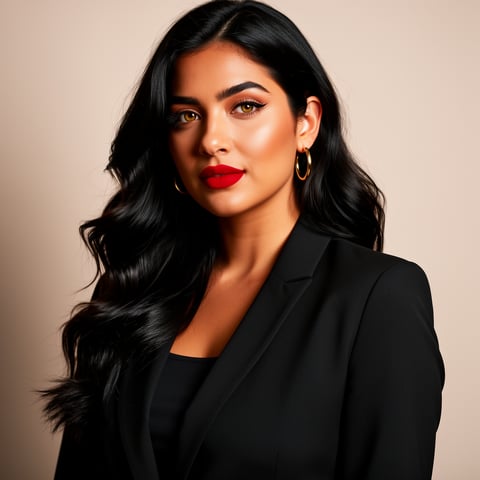
Aria, Style + fashion
Kai, Travel + adventure
Eli, Food + slow living
Sage, Yoga + breathwork
Reese, Gaming + tech

Proof·Built for high-output creator teams: 3-step image cleanup, per-character asset galleries, multi-org agency workspaces, bulk generation for campaign variations, and character continuity across image, video, and voice. socialAF is designed for creators who need polished assets fast, not one-off experiments that disappear in a downloads folder.

Why remove text from image

Built for the way creators actually work.

01

Rescue Great Visuals Instead of Regenerating Everything

You can keep the pose, lighting, wardrobe, product framing, or facial expression you already like while removing distracting text overlays. That means fewer wasted generations, faster approvals, and more usable content from every creative session.

02

Keep Your AI Character Consistent Across Campaigns

Clean images stay connected to your character workflow. Use socialAF’s reference-driven character builder, multi-angle reference packs, and per-character galleries to maintain the same face, style, personality, and brand presence across posts, ads, videos, and avatars.

03

Turn Clean Images Into Full Creator Content

Once the text is removed, you can keep building. Generate image variations with t2i and i2i, create videos with t2v, i2v, and r2v, add talking avatars, clone a voice when you have proper permission, and produce text-to-speech content from one organized workspace.

How it works

How remove text from image works.

Removing text from an image in socialAF is designed to feel like a creator workflow, not a technical editing chore. You start with the image you want to save, guide the cleanup with a clear prompt, then organize the polished result so it can become part of a larger character or campaign system. Masking or selecting unwanted areas and letting AI reconstruct the background is a common image inpainting approach for text and object cleanup. ([lab.cloud](https://lab.cloud/docs/diffusion/inpainting/?utm_source=openai))

Nova, Fitness + wellness

01

Step 1: Upload or Generate the Image You Want to Clean

Start with an image that has unwanted text, such as a caption, label, typo, placeholder word, date stamp, or design note. You can upload an existing asset or create a new image with socialAF’s text-to-image or image-to-image generation. If the visual includes an AI character, save it to the correct per-character gallery so future edits stay organized by persona, campaign, or client.

Jordan, Strength coach

02

Step 2: Describe the Clean Result You Want

Use a direct prompt such as: “remove the text from the wall and restore the plain painted background,” “remove the caption from the bottom of the image while keeping the character unchanged,” or “clean the product label area and preserve natural lighting.” The best prompts tell socialAF what to remove, what to preserve, and what the background should look like after cleanup.

Aria, Style + fashion

03

Step 3: Save, Compare, and Reuse the Polished Asset

Review the cleaned version, generate a few variations if needed, and save the best result to your character or campaign gallery. From there, you can create social posts, short-form video scenes, talking avatar clips, voiceover content, or bulk image variations for different platforms. Agencies can keep client projects separated with multi-org workspaces and scale production without losing track of approved assets.

Remove Text From Images and Keep Creating

Build consistent AI characters across image, video, and voice. Cancel anytime.

Try it Today

The difference

Why it wins for remove text from image.

Most image cleanup workflows stop after a single edit. socialAF helps you remove text from image assets and then turn the polished result into a repeatable content system. For creators and agencies, the real win is not just a cleaner picture; it is a cleaner pipeline from character concept to publish-ready image, video, avatar, and voice content.

Without remove text from image

Traditional approach

With socialAF

Instead of manually cloning pixels, repainting backgrounds, and exporting files one by one, you can guide AI cleanup with a plain-language prompt and keep the finished asset connected to your creator workflow.

Without remove text from image

Generic tools

With socialAF

Instead of creating disconnected one-off edits, socialAF keeps your cleaned images inside per-character galleries with reference-driven character creation, multi-angle reference packs, and reusable campaign assets.

Without remove text from image

Manual methods

With socialAF

Instead of rebuilding every variation from scratch, teams can use bulk generation, image-to-image edits, agency multi-org workspaces, and video generation tools to scale approved visuals across multiple platforms.

What creators say

Creators using socialAF for remove text from image.

We used to throw away strong character images because a caption or label was baked into the frame. With socialAF, we can clean the visual, keep the character consistent, and move straight into video variations for our campaigns.

Maya Chen

Creator Studio Lead

The biggest win is organization. Cleaned images, reference packs, talking avatar tests, and voice assets all live with the right persona, so our agency can move faster without mixing up client characters.

Jordan Ellis

Agency Creative Director

FAQ

Common questions about remove text from image.

How do I remove text from image files with AI while keeping the background natural?

Upload the image, identify the text you want removed, and prompt socialAF with the final look you want. Be specific about what should stay unchanged, such as the character’s face, clothing, lighting, product angle, or background texture. For example: “Remove the white text from the poster and restore the brick wall behind it.” AI text removal works best when the instruction includes both the unwanted element and the desired replacement area. Inpainting-based cleanup tools commonly reconstruct the missing area by using nearby visual context, which is why clear surrounding detail often leads to a more natural result. ([imagetolayers.com](https://www.imagetolayers.com/solutions/remove-text?utm_source=openai))

Can I remove text from an AI character image without changing the character’s face?

Yes. socialAF is especially useful when the image includes a recurring AI character because the cleanup can stay connected to your character system. Use a prompt that tells the generator to preserve the character exactly: “Remove the bottom caption only. Keep the character’s face, pose, outfit, expression, and lighting unchanged.” Then save the result in the character’s gallery. For stronger consistency over time, use socialAF’s reference-driven character builder and multi-angle reference packs so your persona remains recognizable across image generation, video generation, talking avatars, and voice-led content.

What kinds of text can I remove from an image for creator content?

You can use a remove text from image workflow for many creator-owned or properly licensed visuals: draft captions, misspelled words, mockup labels, temporary design notes, date stamps, AI artifacts that look like random letters, unwanted poster text in a background, or platform-specific copy that you want to replace for a new channel. This is especially helpful for thumbnails, character portraits, campaign concepts, story frames, product-style images, and short-form video stills. You should not use text removal to hide ownership, remove credits, or erase watermarks from images you do not have the right to edit.

Is it legal to remove text or watermarks from an image?

Only remove text from images you own, created, licensed, or have permission to edit. Removing a typo from your own campaign image is very different from removing a creator credit, copyright notice, or watermark from someone else’s work. Copyright management information can carry legal significance, and AI cleanup should not be used to misrepresent ownership or bypass licensing. A trustworthy workflow starts with rights-cleared assets, transparent client approvals, and ethical use of AI editing. ([morphed.app](https://morphed.app/blog/remove-text-from-image-ai?utm_source=openai))

Why use socialAF instead of a basic remove text from photo tool?

A basic cleanup tool may help you erase text once, but socialAF helps you do something more valuable: turn the cleaned image into a reusable content asset. After removing text, you can generate new image variations, organize results in per-character galleries, build consistent personas with reference packs, create video scenes with t2v, i2v, and r2v, produce talking avatars, add text-to-speech, and manage work across agency multi-org workspaces. If you create content regularly, that connected workflow saves more time than a one-off edit.

What prompt should I use to remove words from a photo cleanly?

Use a prompt that follows this simple formula: remove the exact text area, preserve the important subject, and describe the restored background. Examples include: “Remove the black text from the top right corner and restore the blue sky,” “Remove the caption bar while keeping the character unchanged,” “Erase the product label text and keep the bottle shape, reflections, and studio lighting,” or “Remove the poster words in the background and replace them with a plain paper texture.” If the first result is close but not perfect, generate a few variations and save the best one to your gallery.

Ready to get started?

Start free →

Ready

Build your first character today.

Join creators using socialAF to bring their characters to life. One subscription, every model, no shoot required.

Start today